How to Navigate and Use the Dashboard in 925worksuite
Overview
This guide explains how to navigate and interact with the 925Worksuite ERP dashboard. It covers key actions such as accessing features, using dropdowns, clocking in, and switching dashboard views.
Steps
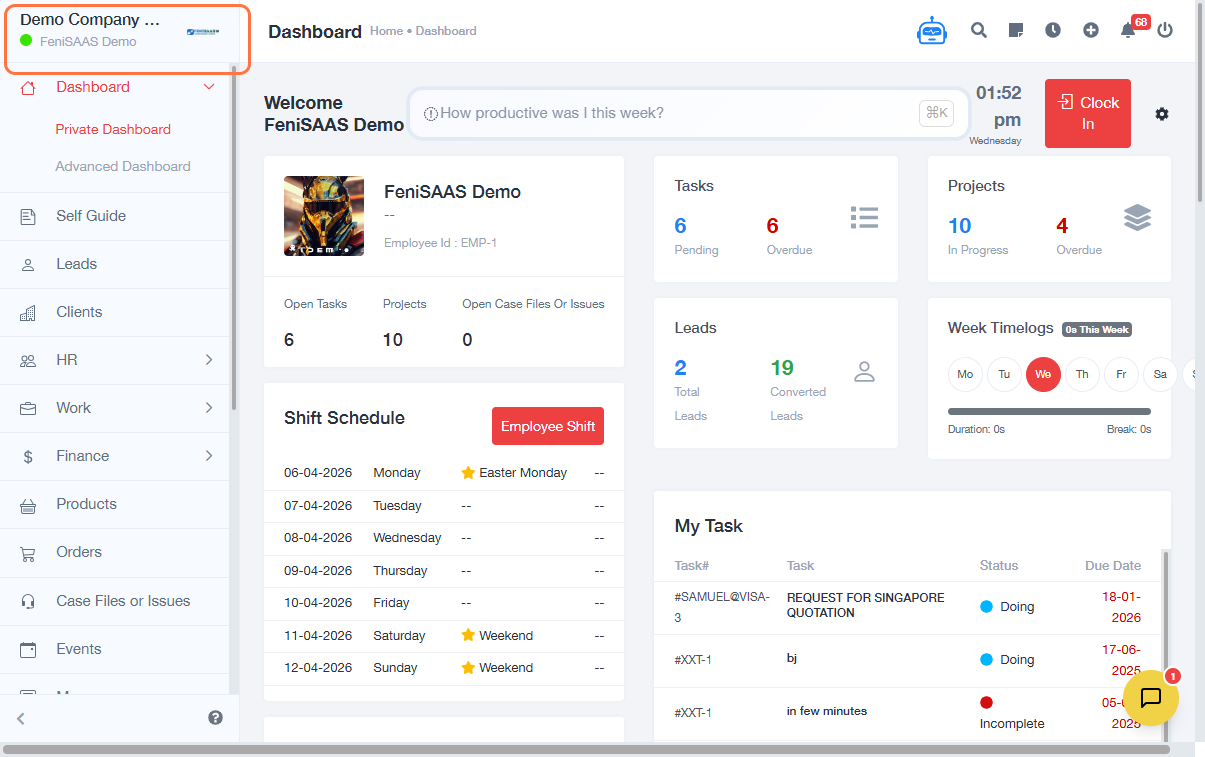
- Go to the Dashboard after login
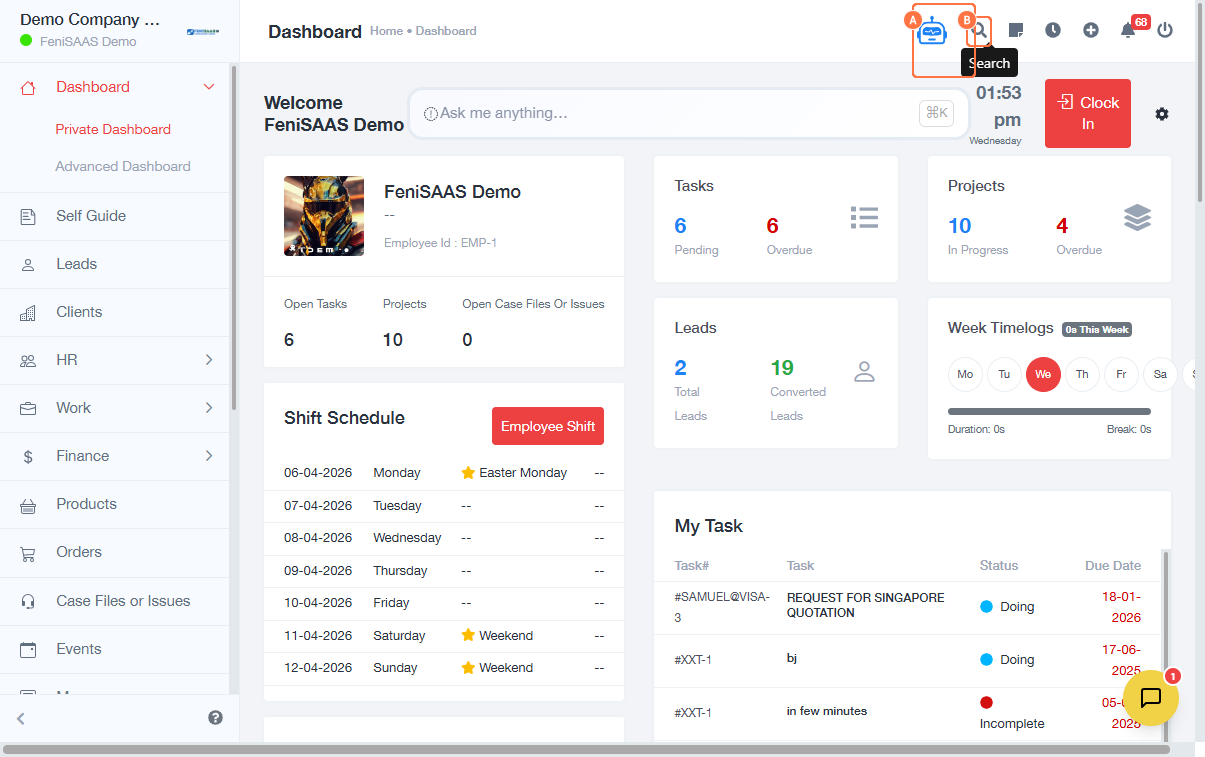
- Go to the Navigation menu (top right area)
- Explore available options from the dropdown
- Click on Chat with 9fi AI Assistant or use the Search feature
- To create:
- Click on the plus sign on the navigation bar
- Select Add Project
- Select Add Task
- Select Add Clients
- Select Add Payments
- To log out:
- Click on your profile/menu
- Click Logout
- To clock in:
- Click on Clock In
- Select appropriate option (e.g., Office)
- Confirm clock-in
- To access advanced features:
- Click on Advanced Dashboard
- Click on Overview to view the dashboard summary
Expected Result
You will be able to navigate the dashboard, access key features, and perform actions such as clocking in, creating projects, tasks, employees, clients, payments, and viewing notifications.
Common Errors
• Unable to find dropdown options
• Clock-in not registering
• Dashboard not loading properly
• Clicking the wrong menu due to multiple dropdowns
• Permission restrictions on certain features
FAQs
• How do I use the 925worksuite dashboard?
Use the dropdown menus and dashboard options to access features like projects, attendance, and reports.
• Where can I clock in from the dashboard?
Click the “Clock In” button and select your preferred option.
• How do I access advanced dashboard features?
Click on “Advanced Dashboard” from the dashboard menu.
• Why can’t I see some dashboard options?
This may be due to role-based permissions.