How to Approve Leave Request in 925worksuite ERP
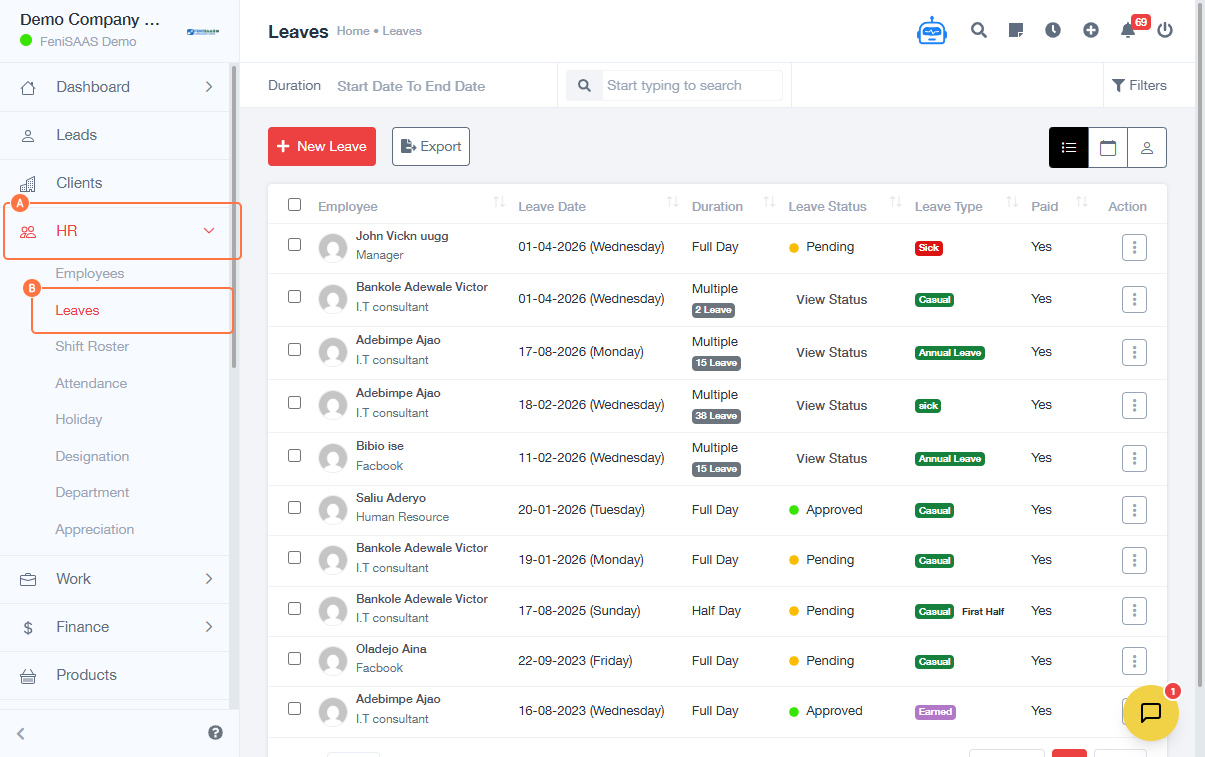
Overview
This guide explains how HR personnel or administrators can review and approve employee leave requests within the system. Approving a leave request updates the employee’s leave status and records it in the system.
Steps
- Go to the Dashboard
- Click on HR
- Select Leaves
- Locate the leave request you want to review
- Click on the Link associated with the leave request
- Click View to see full leave details
- Click on the Dropdown menu (Action button)
- Select Approve
- Enter your Login Credentials (if prompted)
- Provide a Reason/Comment for approval
- Click Save
Expected Result
The leave request will be successfully approved, and the employee’s leave status will be updated accordingly in the system.
Common Errors
- Not clicking Save after approval
- Missing approval reason/comment
- Incorrect login credentials when prompted
- Approving the wrong leave request
- Lack of permission to approve leave
FAQs
1. How do I approve a leave request?
Go to HR → Leaves → View the request → Click Action → Approve → Add reason → Save.
2. Can I reject a leave request instead?
Yes, use the same dropdown and select Reject instead of Approve.
3. Why am I being asked to log in again?
This is a security step to confirm authorization before approving leave.
4. What happens after I approve a leave request?
The request status changes to approved and is reflected in the employee’s leave records.
5. Can I edit an approved leave?
Yes, depending on your access level, you can modify or reverse the action.